A cookie is a small data file that a website asks your browser to store on your computer or mobile device. Cookies allow a website to "remember" your actions or preferences for a long time.
Most Internet browsers support cookies, but users can set their browsers to reject certain types or specific cookies. In addition, users can delete cookies at any time.
Cookies give us information about your interaction with our content and help us to make it easier for you to visit our site(s). For example, some cookies remember your language or preferences so that you do not have to make that choice again when you visit one of our sites. We also use cookies for geolocation purposes, so that we can tell you the location of your nearest Shell station and office.
In addition, cookies allow us to provide you with specific content, such as videos, on our sites. We may use information about your behavior on our sites to provide you with our targeted advertisements on third party sites as part of "remarketing" of our products and services.
We use both first-party and third-party cookies on our website.
First-party cookies originate from the domain fastgg.net and are typically used to define language and preferred location or provide functionality for the main site.
Third party cookies are owned and managed by other parties, in particular business partners or service providers. These cookies may be required to issue certain forms, or allow advertising to be placed outside the Shell website.
Session cookies are temporary cookies used for the duration of your visit to the site and then disappear when you close your browser.
Persistent cookies are used to remember your website preferences and remain on your computer or mobile device even after you close your browser or restart your computer. We use these cookies to analyze user behavior to determine the algorithm of website visits, which will allow us to improve the functionality of our sites for you and other users visiting our sites.
These cookies also enable us to provide you with targeted advertising and to measure the effectiveness of the functionality of our websites and the advertising on them.
Cookies and advertising technologies such as web beacons, pixels and anonymous ad network tags allow us to present targeted advertising to you more effectively. They also help us aggregate audit data, research materials and performance reports for advertisers.
Pixels enable us to understand and improve the delivery of advertisements to you and to know when you have been shown certain advertisements. Because your web browser can request advertisements and web beacons directly from the servers of advertising networks, these networks may see, edit or set their own cookies as if you had requested a web page from their site.
While we do not use cookies to create a picture of how your browsers behave on third-party sites, we do use aggregated third-party data to show you ads that are relevant and of interest to you. We do not share any personally identifiable information we collect with advertisers. You can opt-out of unsourced or third-party advertising by changing your cookie settings.
This opt-out will not remove ads from the pages you visit, however, as a result of this opt-out, the ads you see will not be linked to your interests. This implies that the advertisements you will see will not be linked to your interests by these specific cookies.
We use third-party vendors for some features of our sites, such as when you visit a page that contains embedded videos or YouTube links. These videos (and any other third-party content) may contain third-party cookies, and for information regarding the privacy policies of these third-party service and content providers, we recommend that you consult their websites, which may include information about their use of cookies.
You can, if you wish, refuse or block all or specific types of cookies generated as a result of your visit to one of Shell's sites by setting your cookie preferences on our site(s). You can also change your preferences on Shell's sites and/or any third party suppliers' sites by changing your browser settings.
It should be noted that most browsers automatically allow cookies and therefore, if you do not wish to use cookies, you may need to take action to delete or block cookies. By refusing cookies you will still be able to visit our websites, however some of the features may not work properly.
You can also visit the page www.allaboutcookies.orgwhich contains information on how you can delete or block cookies and general information about cookies. By using our website without deleting or refusing some or all cookies, you agree that we may place cookies that you have not deleted or refused on your device.
Welcome! Please follow the simple steps to place an order for likes in CS2.
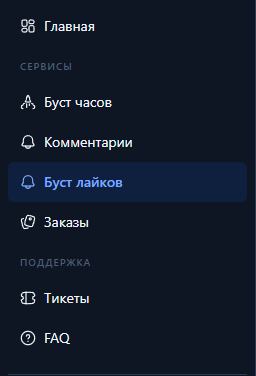
Going into control panel(clickable text) and register or login (if you have previously created an account).
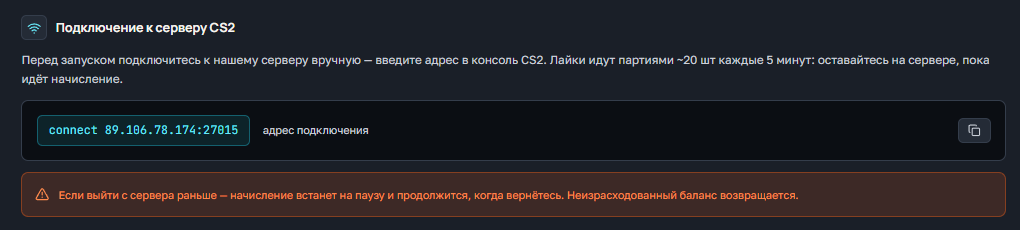
Below you have the section "Подключение к серверу CS2"From there you can copy the address of connection to the server (paste into the console) and commands to start likes (paste or write manually in the game chat).
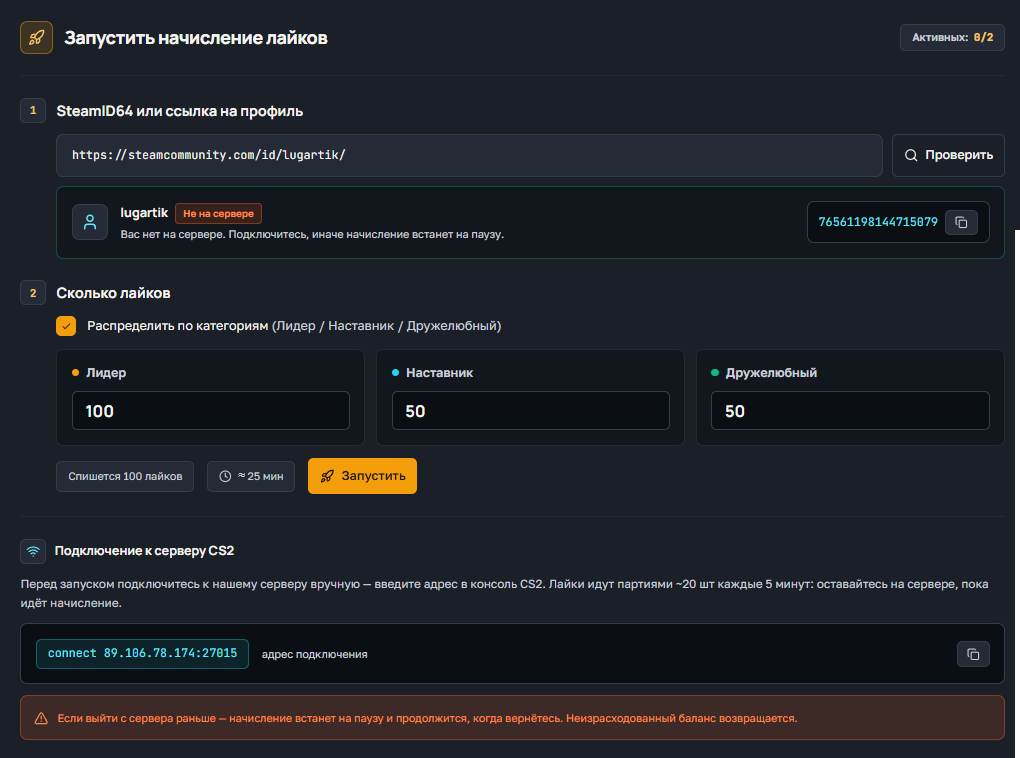
С Вас будет списано то количество лайков, которое Вы указываете. Например 100 на одну категорию или при распределении 100/100/100 так же 100 лайков. При 100/50/50 (или любых других значениях) списывается максимум в одной категории, то есть 100.
Если выйти с сервера раньше — начисление встанет на паузу и продолжится, когда вернётесь. Неизрасходованный баланс возвращается.
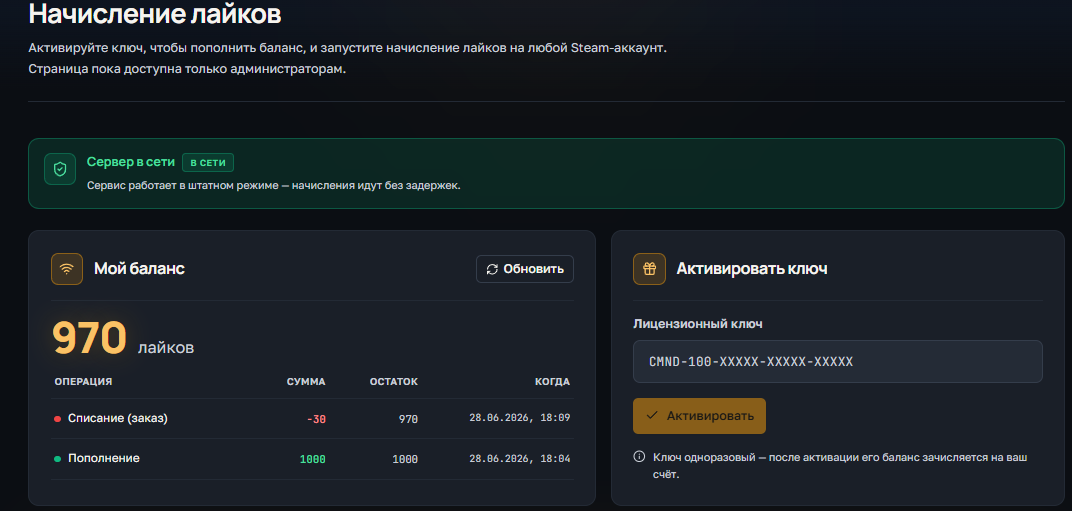
Для проверки баланса у Вас есть поле "Мой баланс", в нем всегда актуальное значение.
Так же в этом поле указаны все списания или зачисления баланса.
Ниже есть 2 поля:
НЕТ! Вы можете использовать лайки на любой аккаунт на сервере, баланс не закрепляется за одним аккаунтом.
На текущий момент, одновременно можно запустить 2 накрутки лайков.
Welcome! Please follow the simple steps to place an order for comment baiting in Steam.
Going into control panel(clickable text) and register or login (if you have previously created an account).
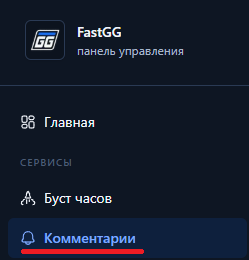
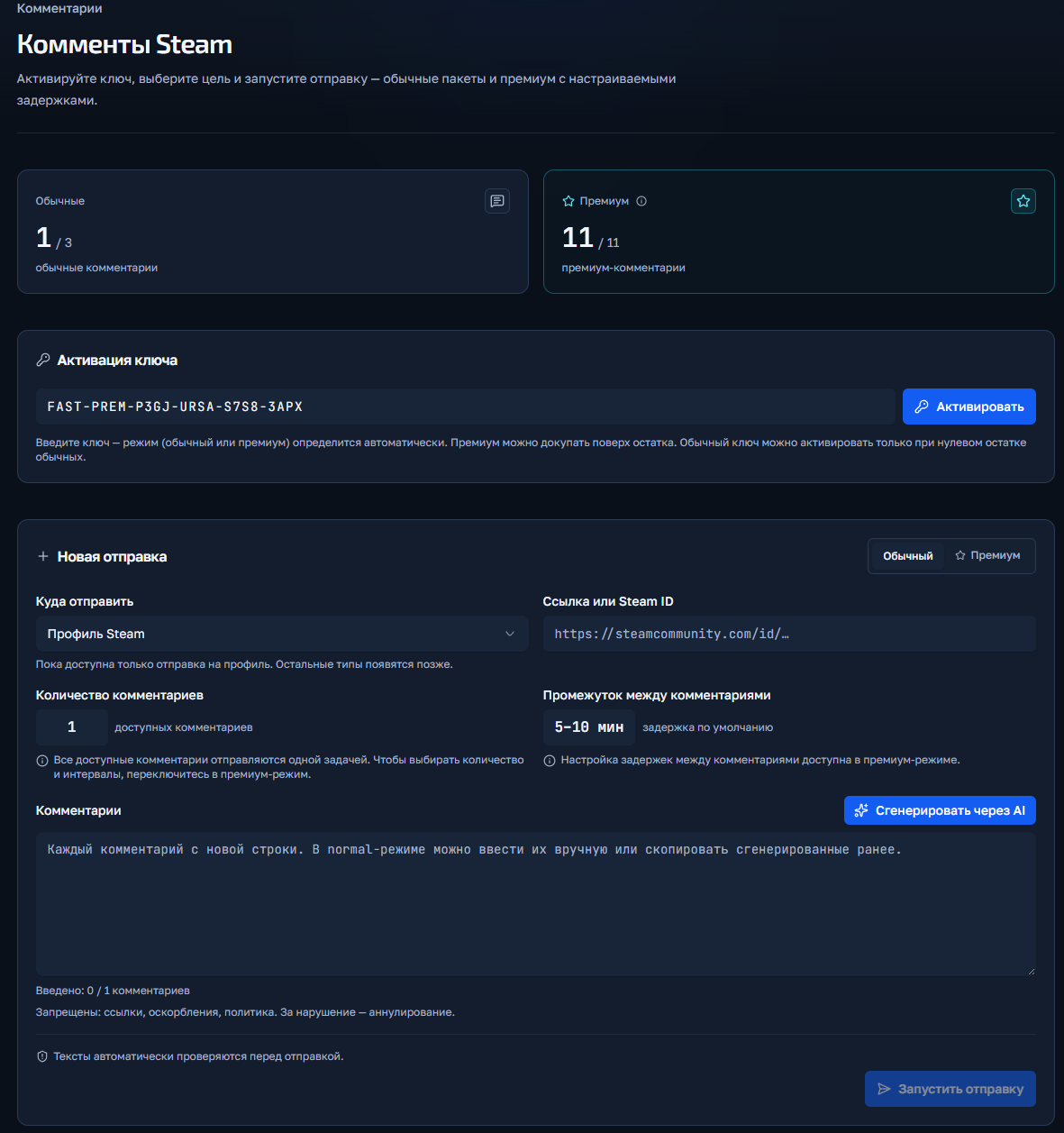
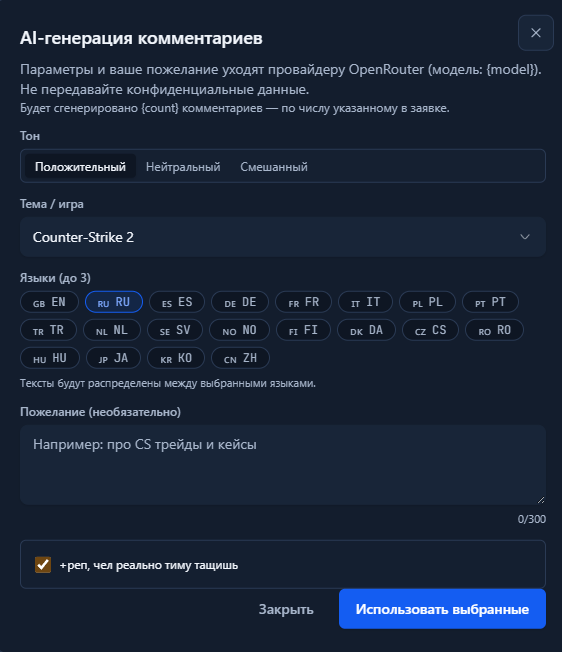
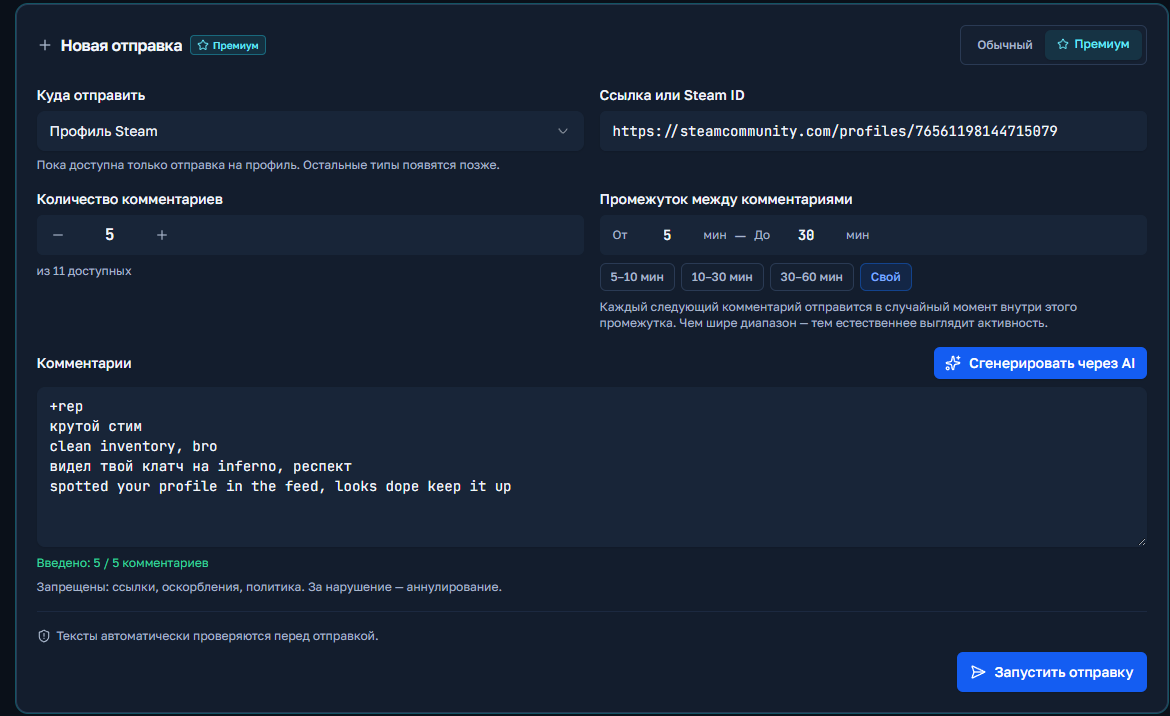
You click the "Start Shipment" button and if there are no errors, the order will start and appear below in the "Shipment History" field.
Welcome! Please follow the simple steps to place an order for a Boost in CS2 or Valorant.
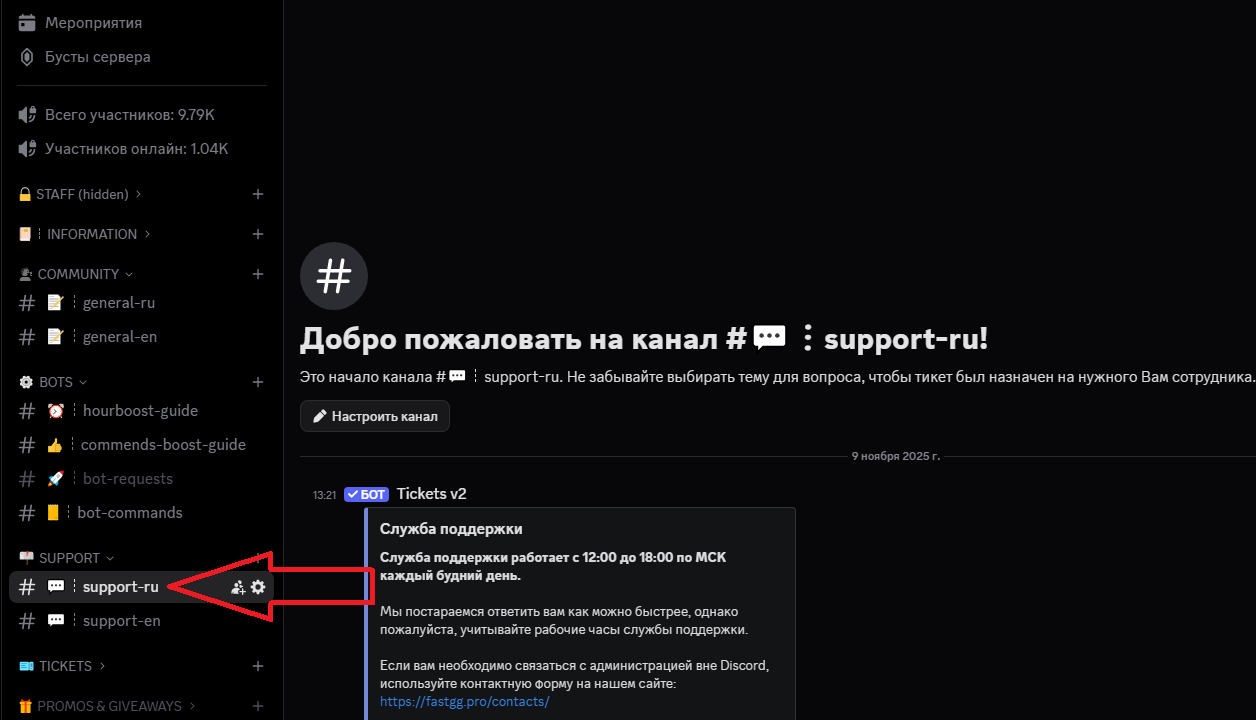
Go to our official Discord server
Find a channel on the server called "#Support-ru or support-en".
In this channel, open a request (ticket) to add an order by selecting the "Boost Rank/Valorant" section.
In the created application form, fill in all necessary data that is requested for ordering (e.g. order no., etc...).
We will quickly process your request and add your order! 😉
Welcome! Please follow the simple steps to activate your key and start Steam cashback
After successful payment, you will receive an electronic check to the email address you provided.
The check will contain:
Go to the panel to control the clock boost and activate the key.
1) Going to the website - https://panel.fastgg.pro/ and register (click "sign in via Google or "Register").
2) Select the "Boost Hours" section (or from the link - https://panel.fastgg.pro/dashboard/hourboost) and in the "Activate key" field insert the key contained in the order receipt.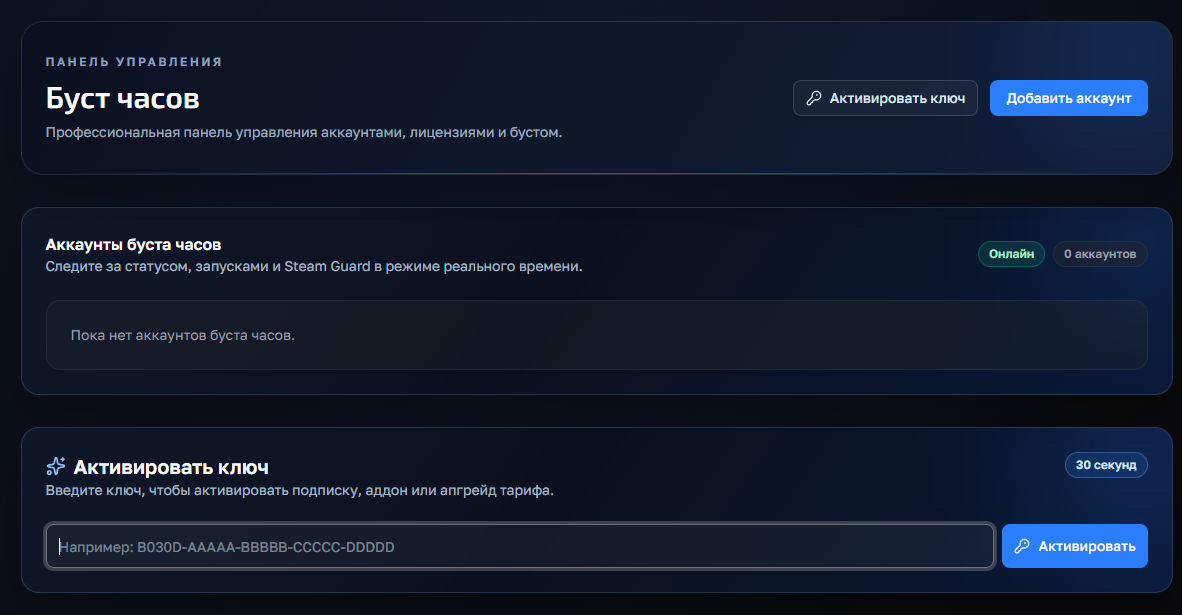
3) Click the "Add Account" button and enter your Stim Login and Password.
4) Now click on the "customize" button, inside you can enter the status (if the tariff allows) and be sure to add games to run (you can enter the names or id of the games).
5) All, click "save" and you can turn on the nakrutka button "Start", further intuitivino site will prompt when you need to enter the code to enter (from mail or on your phone), or will give an error, if there is one.
If you have any problems or questions, we recommend that you pay attention:
1. FAQ section with answers to questions - https://panel.fastgg.pro/dashboard/faq
2. Support/Ticketing system for dialog with support - https://panel.fastgg.pro/dashboard/tickets