Welcome! Please follow the simple steps to place an order for likes in CS2.
Going into control panel(clickable text) and register or login (if you have previously created an account).
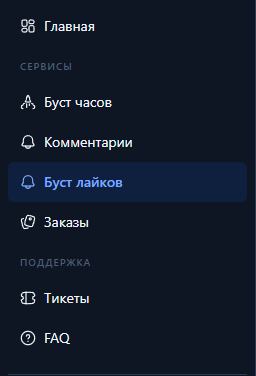
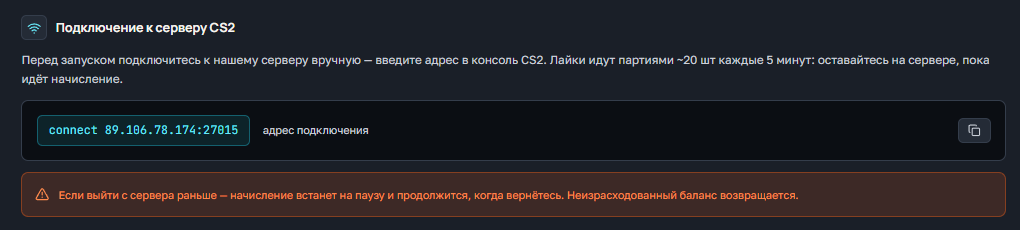
Below you have the section "Подключение к серверу CS2"From there you can copy the address of connection to the server (paste into the console) and commands to start likes (paste or write manually in the game chat).
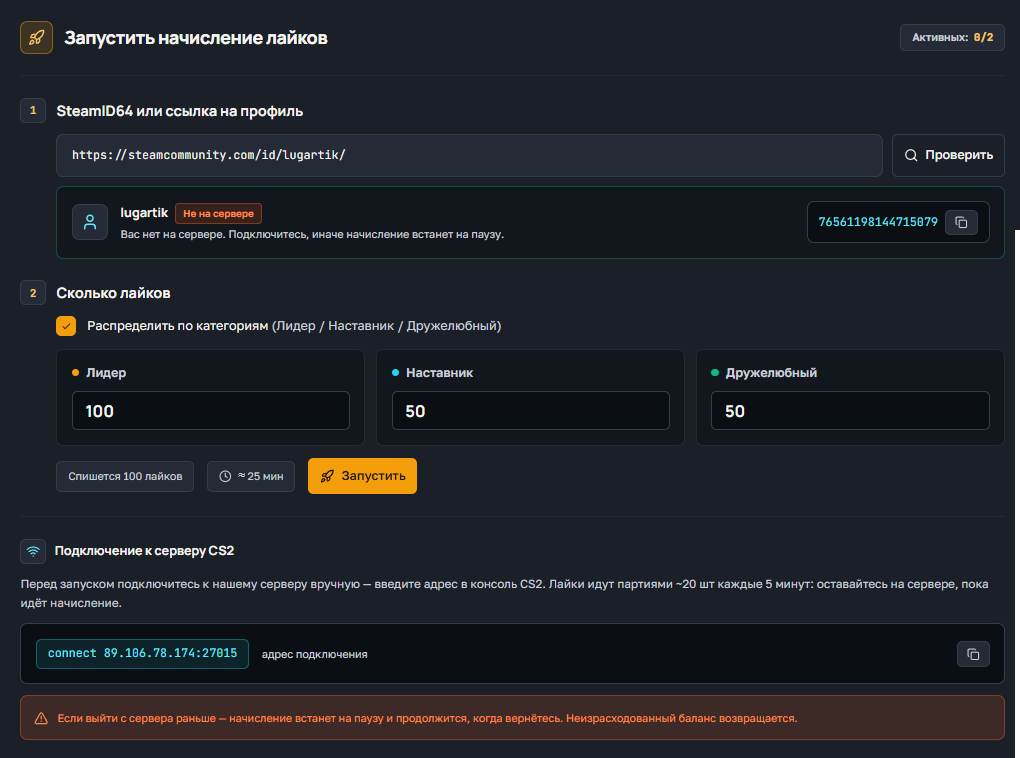
С Вас будет списано то количество лайков, которое Вы указываете. Например 100 на одну категорию или при распределении 100/100/100 так же 100 лайков. При 100/50/50 (или любых других значениях) списывается максимум в одной категории, то есть 100.
Если выйти с сервера раньше — начисление встанет на паузу и продолжится, когда вернётесь. Неизрасходованный баланс возвращается.
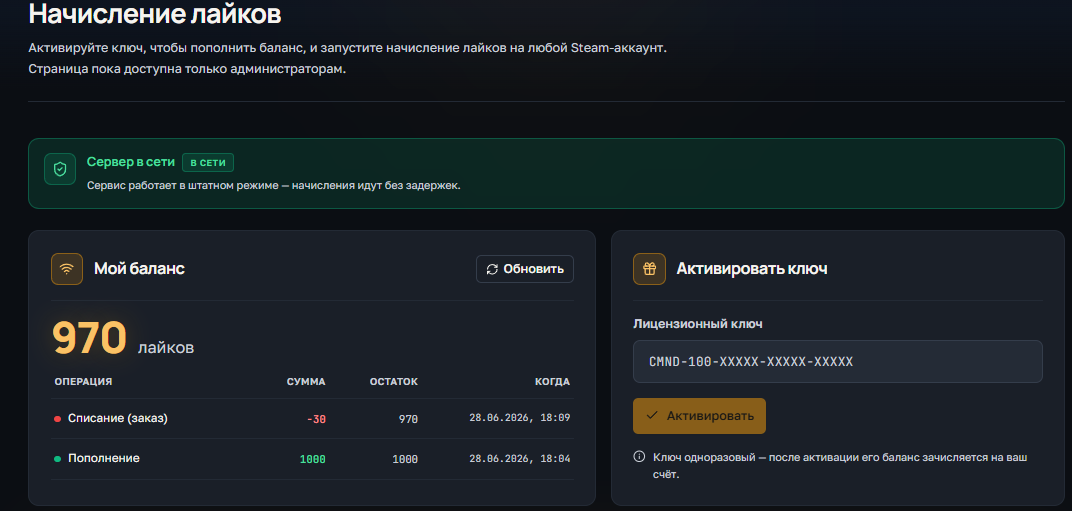
Для проверки баланса у Вас есть поле "Мой баланс", в нем всегда актуальное значение.
Так же в этом поле указаны все списания или зачисления баланса.
Ниже есть 2 поля:
НЕТ! Вы можете использовать лайки на любой аккаунт на сервере, баланс не закрепляется за одним аккаунтом.
На текущий момент, одновременно можно запустить 2 накрутки лайков.
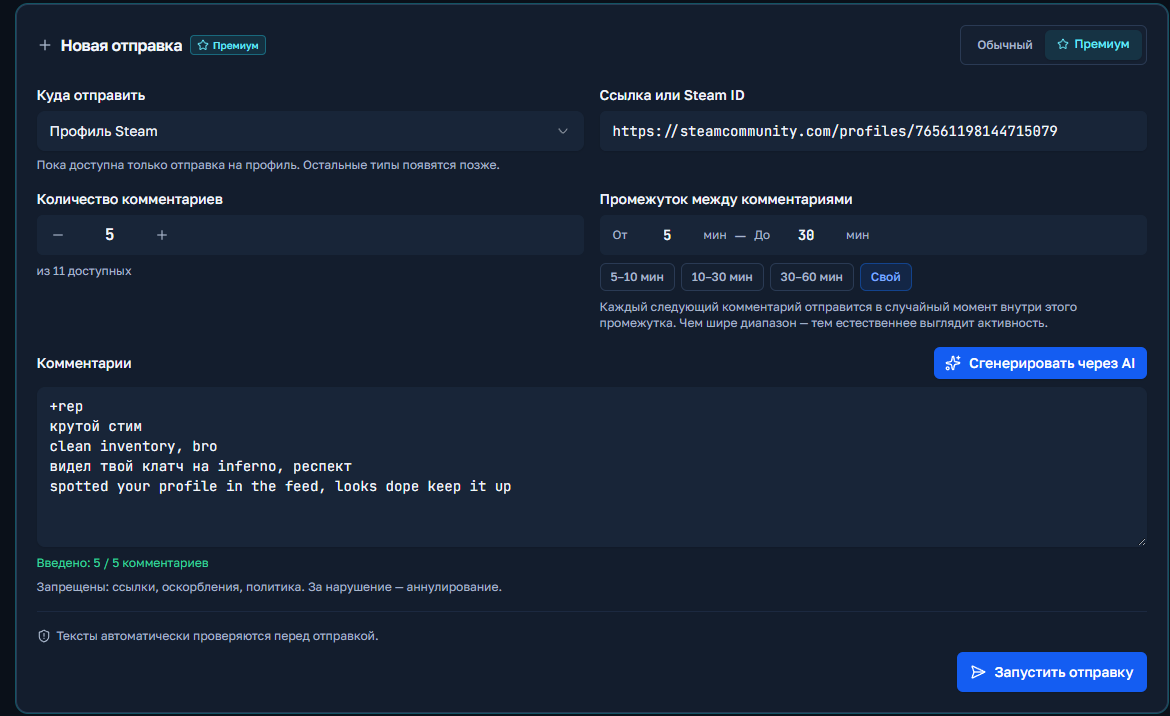
Welcome! Please follow the simple steps to place an order for comment baiting in Steam.
Going into control panel(clickable text) and register or login (if you have previously created an account).
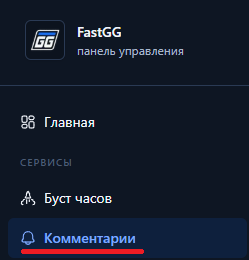
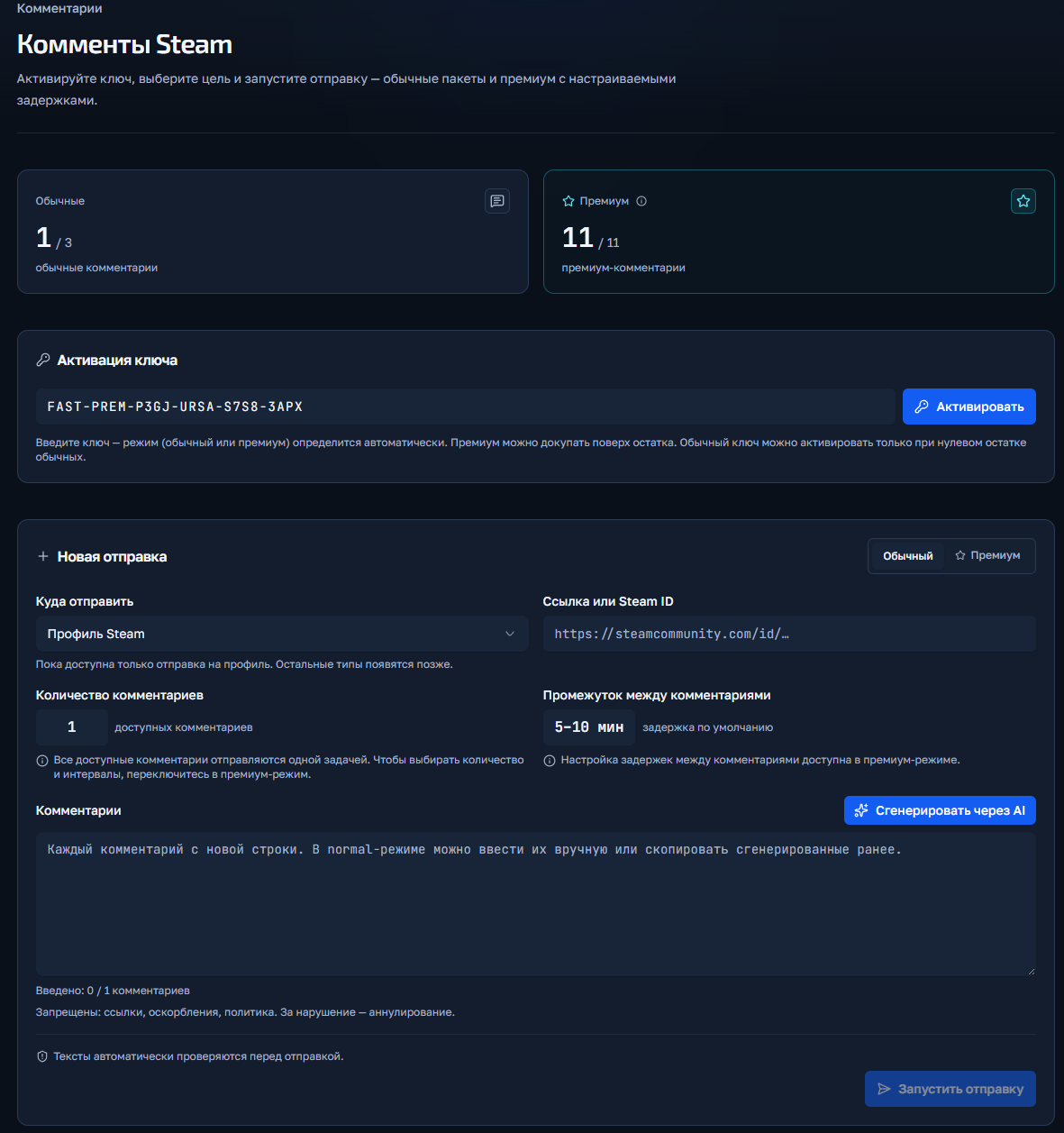
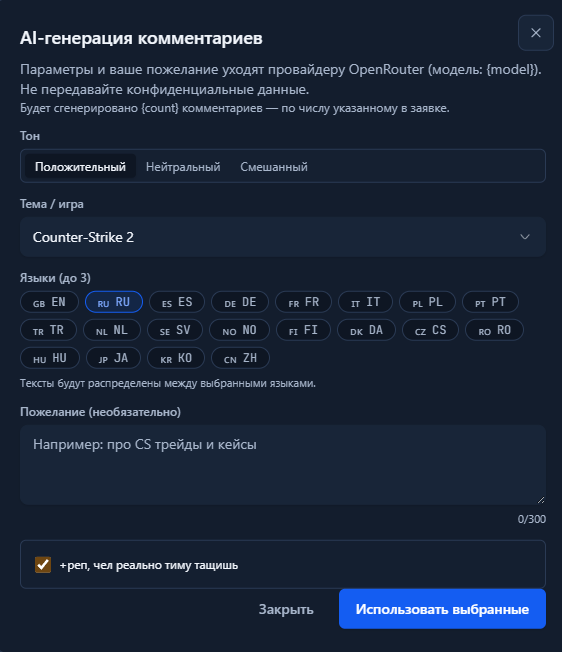
You click the "Start Shipment" button and if there are no errors, the order will start and appear below in the "Shipment History" field.
Welcome! Please follow the simple steps to place an order for a Boost in CS2 or Valorant.
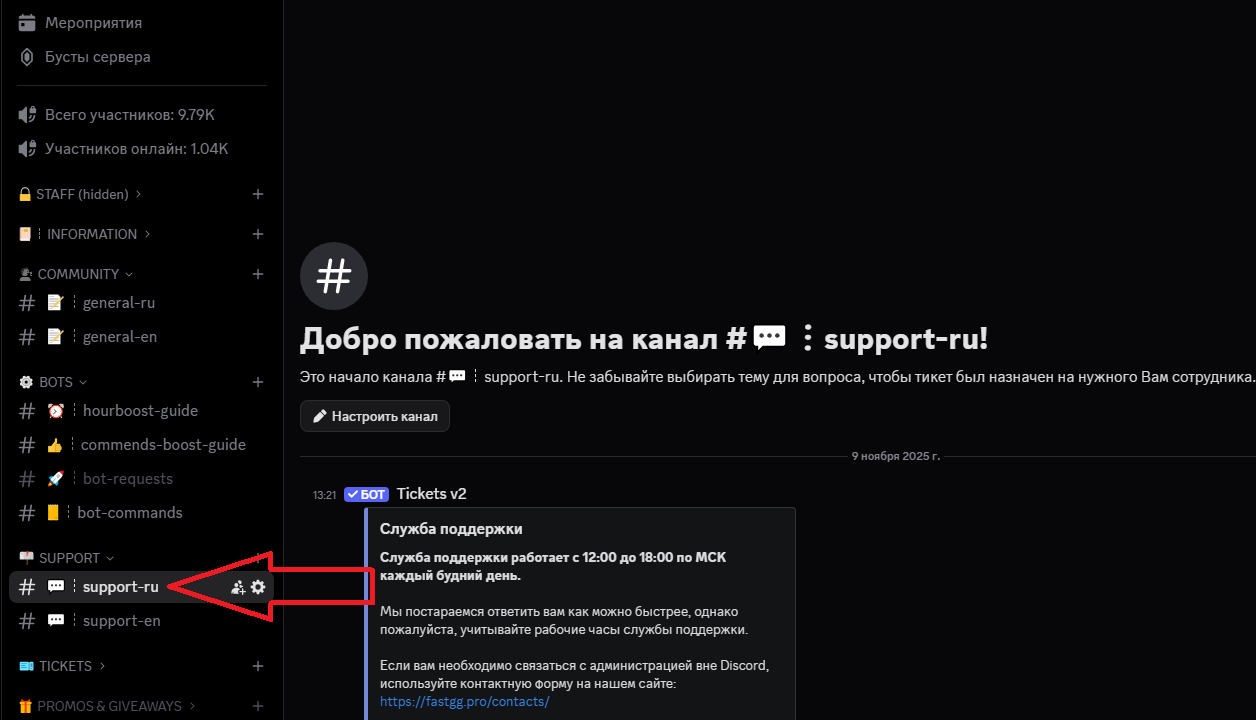
Go to our official Discord server
Find a channel on the server called "#Support-ru or support-en".
In this channel, open a request (ticket) to add an order by selecting the "Boost Rank/Valorant" section.
In the created application form, fill in all necessary data that is requested for ordering (e.g. order no., etc...).
We will quickly process your request and add your order! 😉
Welcome! Please follow the simple steps to activate your key and start Steam cashback
After successful payment, you will receive an electronic check to the email address you provided.
The check will contain:
Go to the panel to control the clock boost and activate the key.
1) Going to the website - https://panel.fastgg.pro/ and register (click "sign in via Google or "Register").
2) Select the "Boost Hours" section (or from the link - https://panel.fastgg.pro/dashboard/hourboost) and in the "Activate key" field insert the key contained in the order receipt.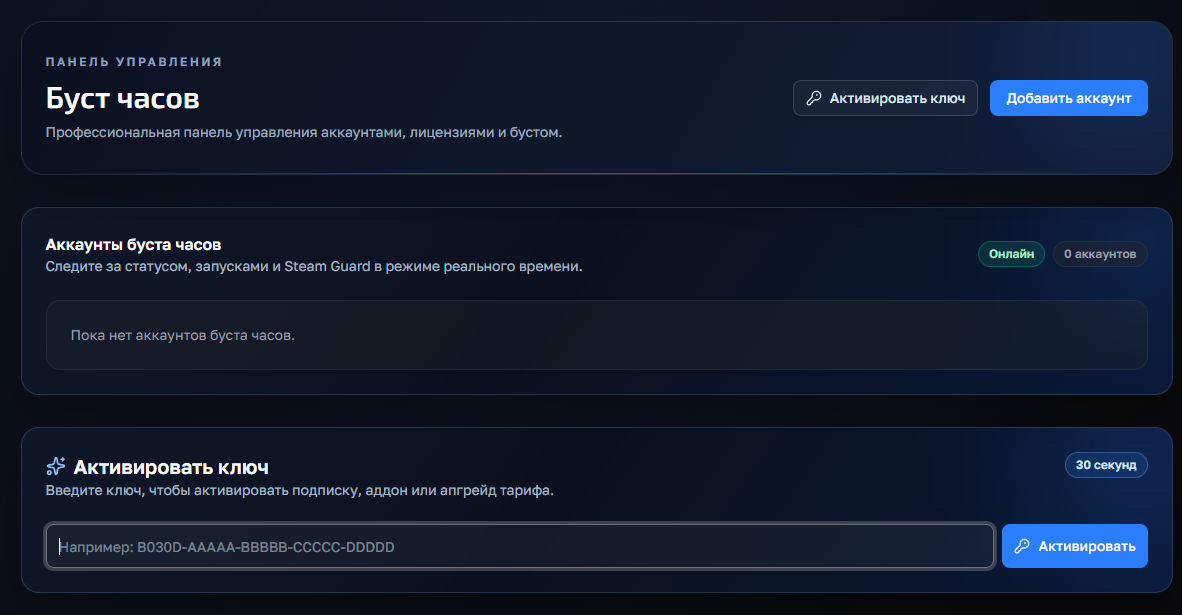
3) Click the "Add Account" button and enter your Stim Login and Password.
4) Now click on the "customize" button, inside you can enter the status (if the tariff allows) and be sure to add games to run (you can enter the names or id of the games).
5) All, click "save" and you can turn on the nakrutka button "Start", further intuitivino site will prompt when you need to enter the code to enter (from mail or on your phone), or will give an error, if there is one.
If you have any problems or questions, we recommend that you pay attention:
1. FAQ section with answers to questions - https://panel.fastgg.pro/dashboard/faq
2. Support/Ticketing system for dialog with support - https://panel.fastgg.pro/dashboard/tickets
Welcome! Please follow the simple steps to use the Trust Factor checker
Going into control panel(clickable text) and register or login (if you have previously created an account).
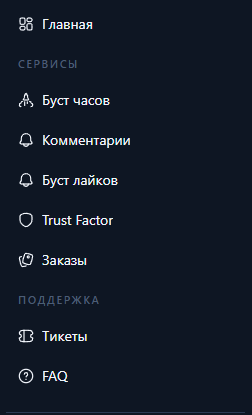
Open the Trust Factor section"
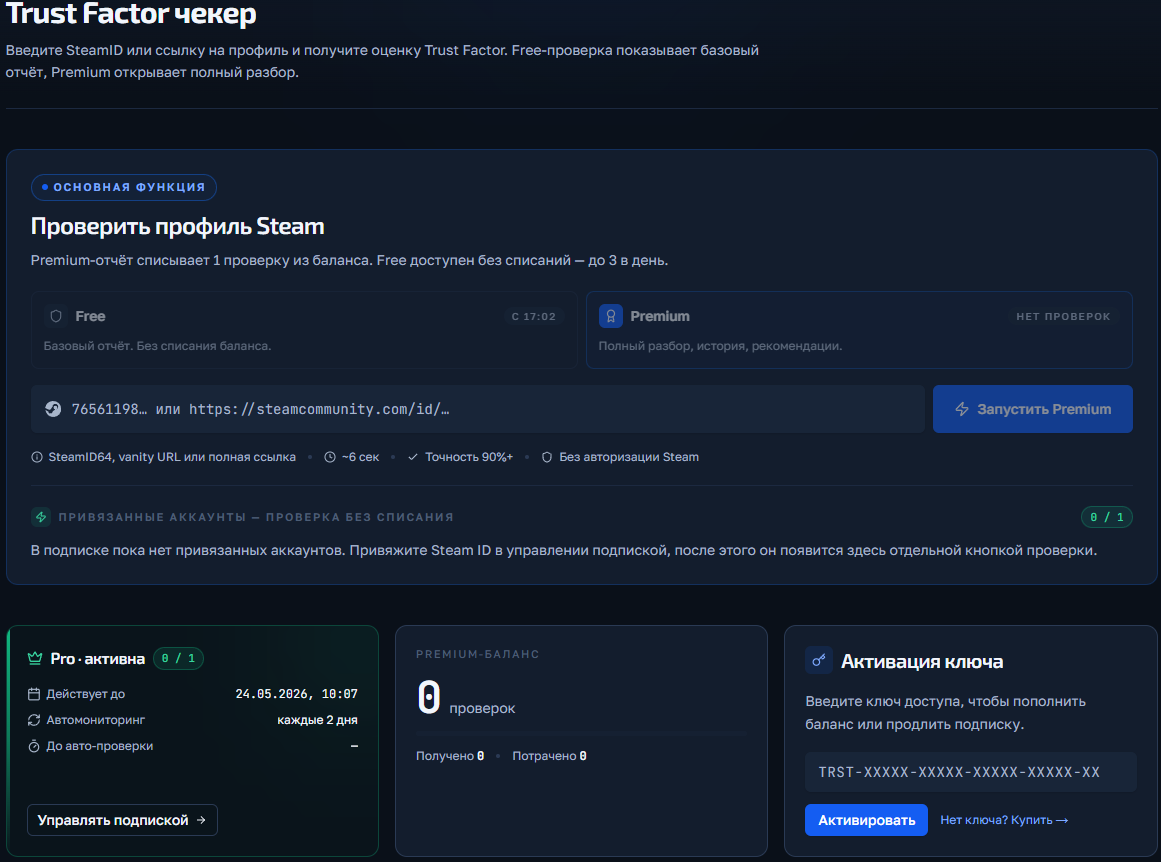
You can opt for a free Trust check, 3 times on the regular version and 1 time on the Premium version (full report with details).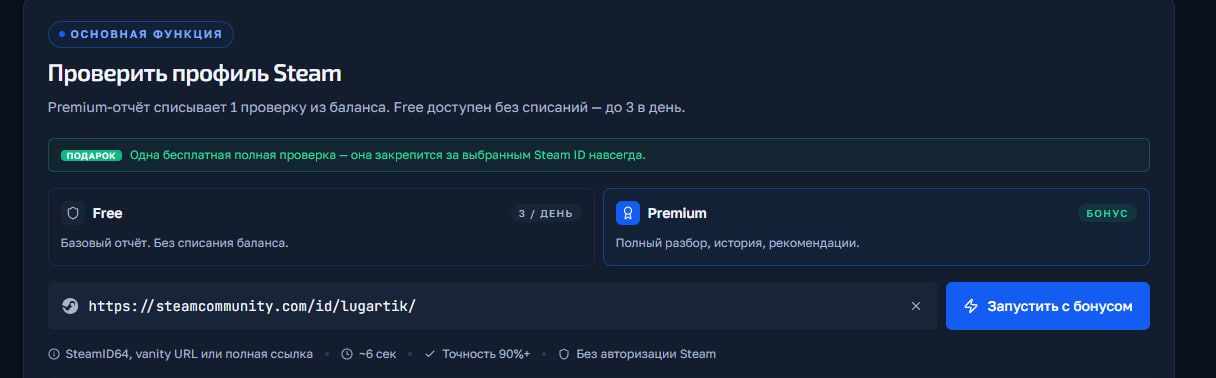
Or below click on the "manage subscription" button and get to the tariff settings.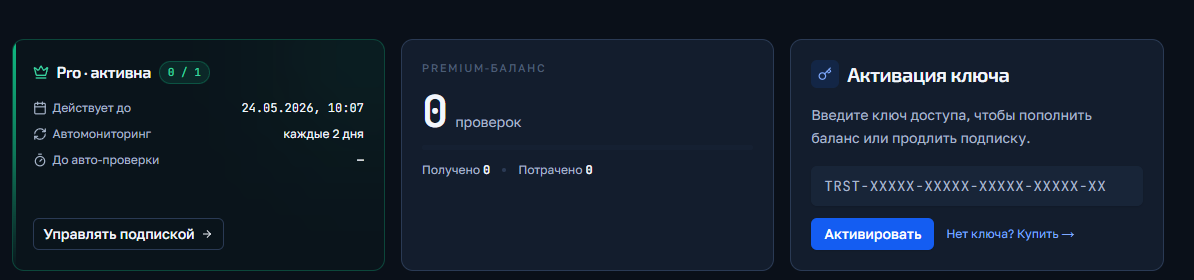
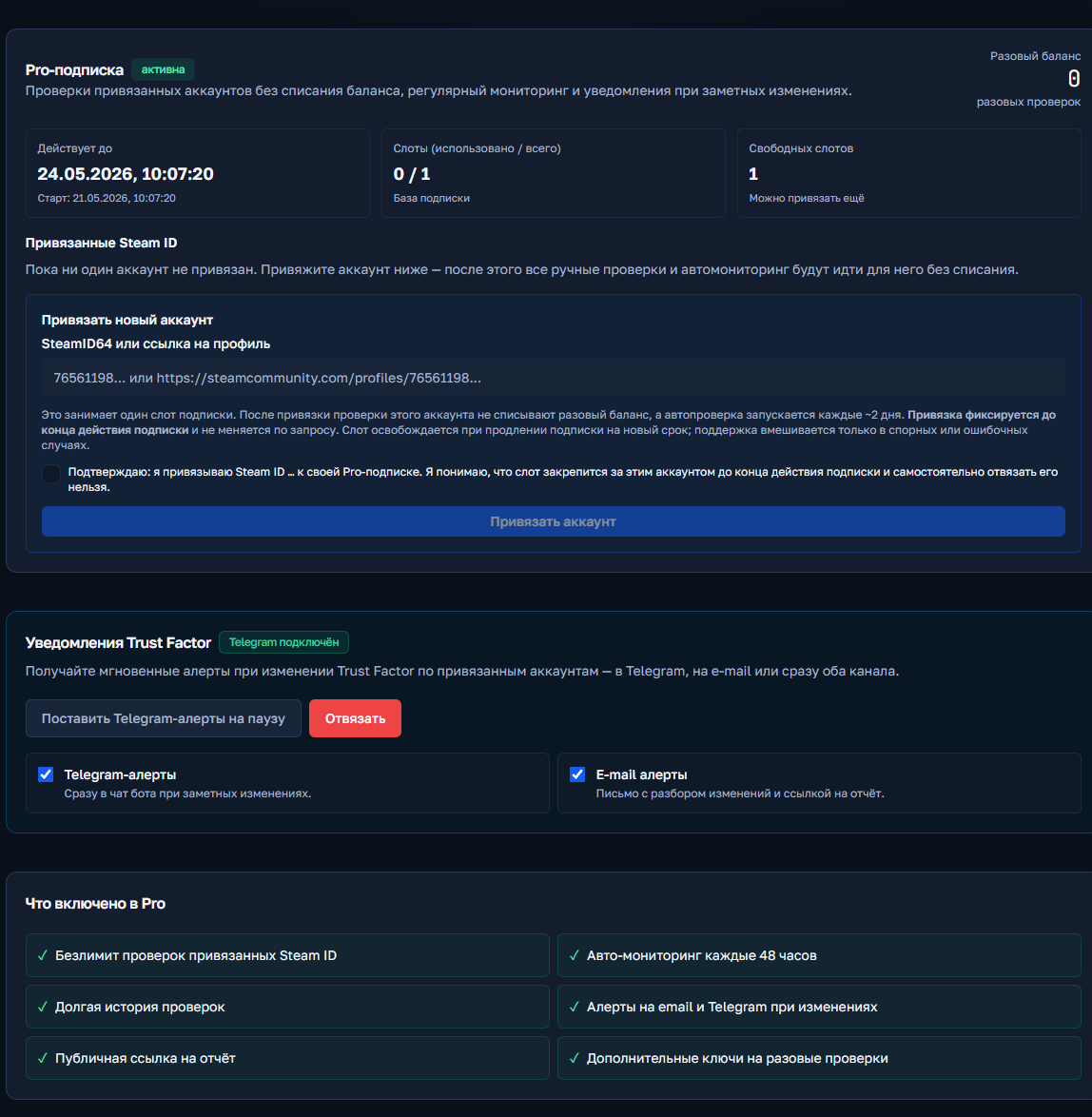
You can link an account (1 time) for continuous monitoring without losing your balance. Just paste the link, confirm and link the account. You can also enable TG alerts.